How to Run Llama 3 on Your Local Machine (A Beginner’s Guide)
by Hannah Lee••6 min read
AI chat tools are powerful, but they come with a cost. Most online AI platforms send your data to remote servers, store conversation logs, and apply usage limits or censorship rules. For privacy-sensitive users, developers, and researchers, this is a serious concern.
This is why many users now prefer to run Llama 3 locally on their own computers. Running AI locally means your data never leaves your machine. No internet dependency. No tracking. No API cost.
This easy-to-follow guide will show you how to run Llama 3 on your own computer using Ollama, a simple tool that makes it easy to install and use AI models on your own computer. We will go over the hardware requirements, installation steps, terminal commands, and optional graphical interfaces so you can talk to Llama 3 like you would with ChatGPT, but without being online or in public.
Why run AI on your own computer?
Before you start installing, you should know why local AI is becoming so popular.
No censorship, no network lag, and complete privacy
When you run Llama 3 on your own computer, everything happens there. This has a number of big benefits:
Complete privacy
Your prompts and answers never leave your computer. This is perfect for private conversations, sensitive documents, or internal code.
No network latency
Responses are generated locally, so there is no delay caused by internet speed or server congestion.
No censorship or content restrictions
Local models are not filtered by external policies. You control how the model is used.
For developers and privacy-focused users, this level of control is the biggest reason to run Llama 3 locally.
Self-check of Hardware Requirements
Before installation, you must confirm whether your computer can handle Llama 3 smoothly.
Can Your Computer Handle It? (Memory and Graphics Card Requirements: 8GB vs 16GB)
Llama 3 comes in different model sizes. Hardware requirements depend mainly on RAM, not just the CPU.
Minimum recommendations:
8GB RAM
Can run smaller Llama 3 models, but performance may be slower.
16GB RAM (Recommended)
Smooth experience, faster responses, and better multitasking.
Graphics card (GPU):
A GPU is not required, but it can improve speed.
Ollama works well on CPU-only machines.
Storage:
At least 10–15GB free space for models and cache.
If your system has 16GB RAM or more, you are well prepared to run Llama 3 locally.
Main Steps: Set up Ollama
Ollama is the simplest way to run and manage AI models on your own computer. It automatically downloads, runs, and updates models.
Download and Install (Works on Mac, Windows, and Linux)
Ollama works with all major operating systems.
Steps:
Start your browser
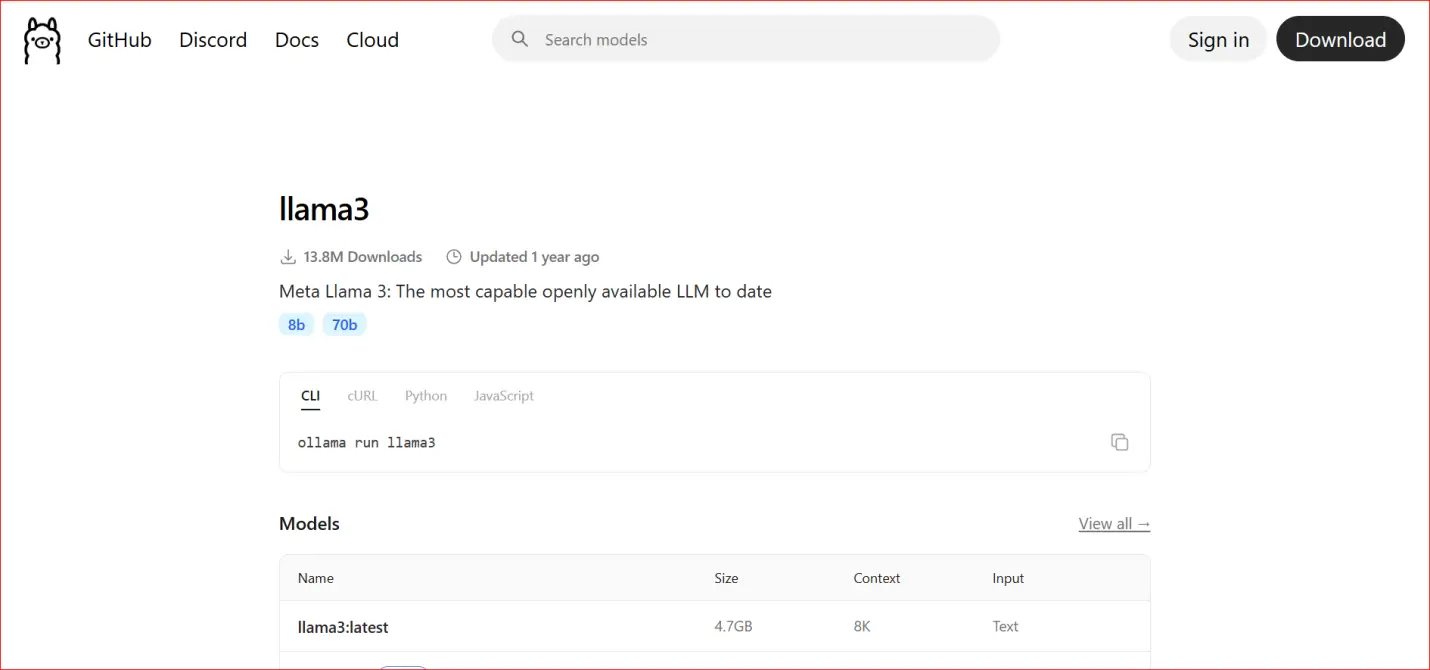
Go to the official Ollama site
Get the installer for your computer:
macOS
Windows
Linux
1. Start the installer and follow the on-screen instructions
You do not require any technical skills to install it; it's easy.
Ollama runs quietly in the background once it's set up.
Terminal Command-line Practice: ollama run llama3
The most important step now is to run Llama 3.
Start your terminal::
macOS: Terminal
Windows: Command Prompt or PowerShell
Linux: Terminal
1. Type the instruction below:
ollama run llama3
3. Hit Enter
What happens next:
Ollama downloads the Llama 3 model on its own.
The terminal shows how far along the download is.
The chat interface shows up when it's done.
You can now type questions right into the terminal.
This is the time when you officially run Llama 3 on your own computer.
A screenshot here should show::
Window for the terminal
ollama run the llama3 command
Chat session that lets you talk to other people
Get rid of black text on a white background by installing a graphical interface (WebUI)
The terminal works fine, but a lot of people would rather have a graphical interface like ChatGPT.
Open WebUI or Page Assist Plugin is a good choice
You can install a WebUI that connects to Ollama to make it easier to use.
Some popular choices are:
Start WebUI
Page Assist browser add-on
These tools give you:
Chat bubbles
History of conversations
Easier to read
Options to copy and export
Installation usually includes:
Running a small service in the area
Linking it to Ollama's local endpoint
You don't need a cloud account.
Screenshot Demonstration: Use the Local Model Like Using ChatGPT
Once the WebUI is active:
Open your browser
Select Llama 3 as the model
Start chatting normally
From the user’s perspective, it feels just like ChatGPT but:
No login
No internet dependency
No data collection
A screenshot here should show:
Browser chat interface
Llama 3 selected
Local conversation in progress
Common Errors and Solutions
Running AI locally is easier than ever, but beginners may face a few issues.
Common problems:
Model download fails
Solution: Check internet connection and disk space.
Slow responses
Solution: Close other heavy applications or use a smaller model.
Command not found
Solution: Restart the system after installing Ollama.
Out of memory error
Solution: Upgrade RAM or switch to a smaller Llama 3 variant.
Most issues are hardware-related and easy to fix.
Who Should Run Llama 3 on Their Own?
This setup works best for:
Users who care about their privacy
Developers who work with private code
Researchers looking at private data
Writers who write offline
People who love AI avoiding API costs
If you care about privacy and control, it's useful to know how to run Llama 3 on your own computer.
Conclusion
It's no longer hard or dangerous to run artificial intelligence on your own computer. Now, anyone can run Llama 3 on their own computer without having to know a lot about technology. Users now have full control over their data, conversations, and workflows because of this change. Local AI is better for privacy-sensitive users because it doesn't send data to servers outside of the user's computer.
This guide taught you everything you need to know, from checking your hardware requirements to installing Ollama and starting Llama 3 with a simple terminal command. You also learned that adding a graphical WebUI can make the command line more user-friendly, like ChatGPT. These steps show that everyday people can now use powerful AI tools, not just developers.
There are long-term benefits to running Llama 3 on your own machine. There are no fees for subscriptions, no limits on how much you can use it, and you don't need the internet to use it. After you install the model, it will be your personal assistant for life, and you will be in charge of it. This level of freedom is very important for developers, researchers, writers, and professionals who work with private information.
Most importantly, local AI is a sign of a future where people don't have to rely on centralized platforms anymore. You are well on your way to being digitally independent if you learn how to run Llama 3 on your own. You own your AI, and your data stays private. Your work flow stays the same. This isn't just a technical setup; it's a better and safer way to use AI in your daily life.
Author

Hannah Lee
Education & Research Tools Writer
Hannah talks about free AI tools for students and researchers, like PDF summarizers, tools for taking notes in class, and academic search helpers. Her work is about making sure that tools are safe for real academic use, that citations are correct, and that information is reliable.
Related Posts

Build a Landing Page in 30 Seconds Free Church Website Builder Guide
How to Make a Free Church Website Making a website used to take a lot of time, money, and work. This often meant that churches and small community groups had to hire designers or developers, which they couldn't always do because they didn't h
Chatgpt vs deepseek: Best Free Model for Coding
Every day, developers use AI. It assists programmers in coding, debugging issues to resolve a problem, understanding how complex logic works easily and algorithm for faster decision making. Many developer users ChatGPT for their work. They know it ca
Cursor vs Windsurf vs GitHub Copilot: A Deep Comparison of Agentic IDEs
Every day, AI code editors get better. People mostly used GitHub Copilot and other early tools to write short pieces of code or finish lines of code. These features sped up simple tasks, but developers still had to figure out how the project was set